
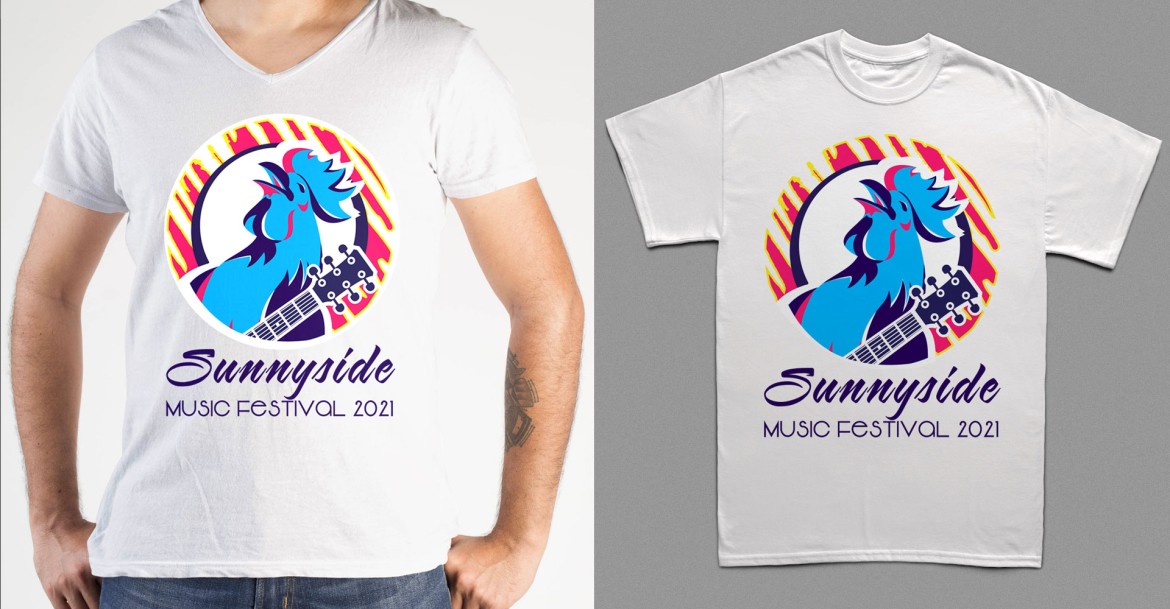
For an example of the mercahdise discussed in this article click here.
There are excellent, easy to use web sites that enable you to print all manner of merchandise. From t-shirts, water bottle, fridge magnets to shower curtains, mugs, stickers and banner, pretty much its possible to print onto anything. For example:
vistaprint.com, threadless.com, uprinting.com
These site do all the hard work for you. The only thing (other than pay!) that is required of you is to upload a good artwork file. And by good I mean art work of razor sharp quality, correct color mode, with fonts delt with. Sounds intense if your not a graphic designer, but really its a few simple steps that I will show you.
To ensure successful printing on merchandise you need only to know a few simple ticks:
1. Ideally your file should be a Vector not Raster file. So an Illustrator file, not a photo shop one. For more on Vector verse Raster files click here. Essentially all you need to to understand is that a Vector file will always maintain its sharp quality, no matter how much you scale it up or down. Where as a Raster file will get fuzzy and pixelated. Therefore we will be working with a vector illustrator logo file here.
2. Color Mode: Images on the web are in RBG mode, where as images for print are in CMYK mode. Pretty much this again boils down to quality. (for more on CMYK v RGB click here, or save yourself the time and just trust me, make it CMYK!). To do so select File > Document Color Mode > CMYK
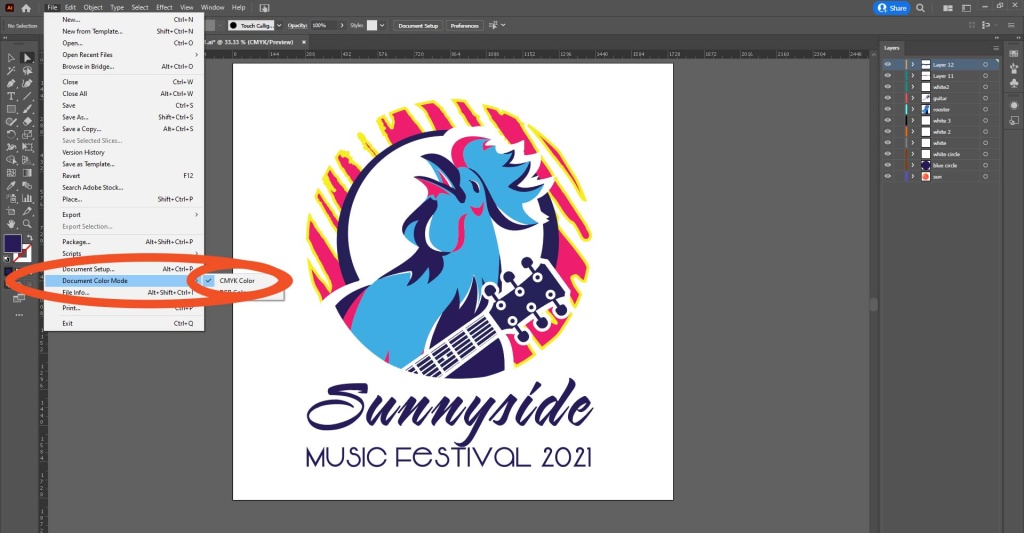
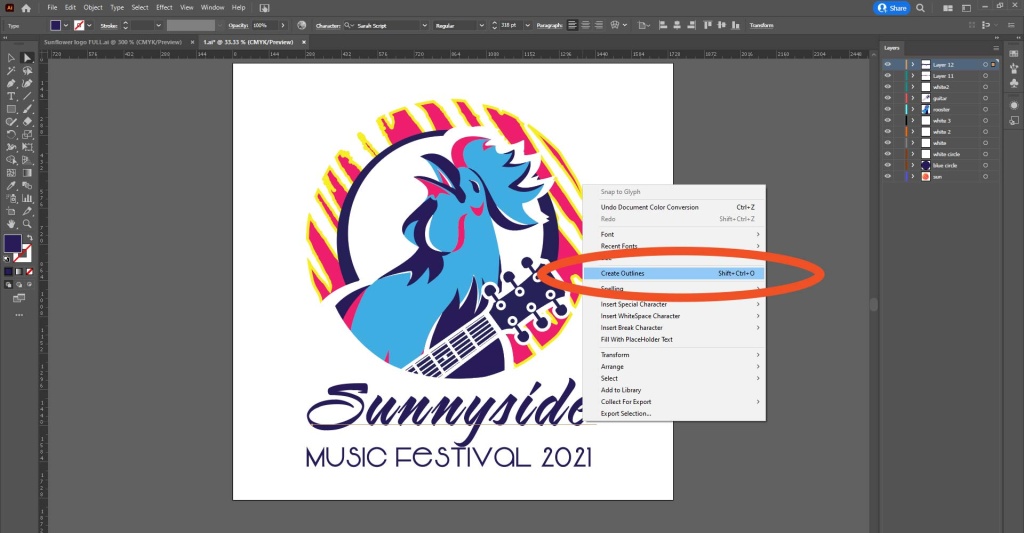
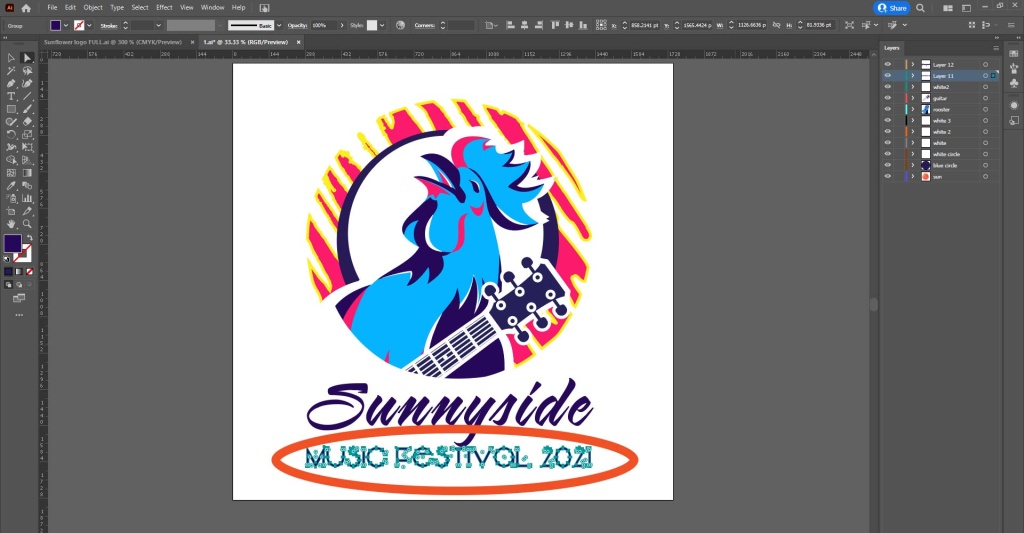
3. Font: If you file is opened on a devise that does not have your chosen font installed on it, then Illustrator will substitute with another font. Your have no control over this, but your art work will be altered with undesirable results. To ensure your logo text always appears exactly as you want it to you need to turn it from editable text into an object. To do this select the text > right click > outline Text. Voila, your words are no longer text, they are now objects with paths, and as such no matter where this file travels no change will occur. Do this for all text.
4. Finally save your Illustrator file. Go to File > Save As , and under File name in the dialog box select the drop down for Save as Type. To cover all your bases Id save the file 3 times, as a AI file, an EPS file and a PDF. That way no matter what format your printer wants, your ready!

About Sarah Lennon
Sarah Lennon is co-owner and lead designer at Big Orange Planet, a Denver web design and SEO company. For more than 20 years, she has worked across web design, interactive experiences and digital strategy, exploring how design and functionality work together — from ecommerce and property search systems to interactive tools, animation and immersive brand experiences. She now works daily with AI as part of the real-world creative and development process. She writes from that hands-on experience, exploring where AI genuinely improves creative and technical work, where it falls short, and what happens when you actually put these tools to work on live projects.
Get the Good Stuff
No fluff. Just practical web design ideas, SEO insight, behind-the-scenes projects, & solutions we've tested in the real world.
Never Miss a Good Idea
More Big Orange Knowledge

The Role of Online Communities in Personal Branding
Alt tags stand for "alternative image tags", and are critical to SEO. An alt…
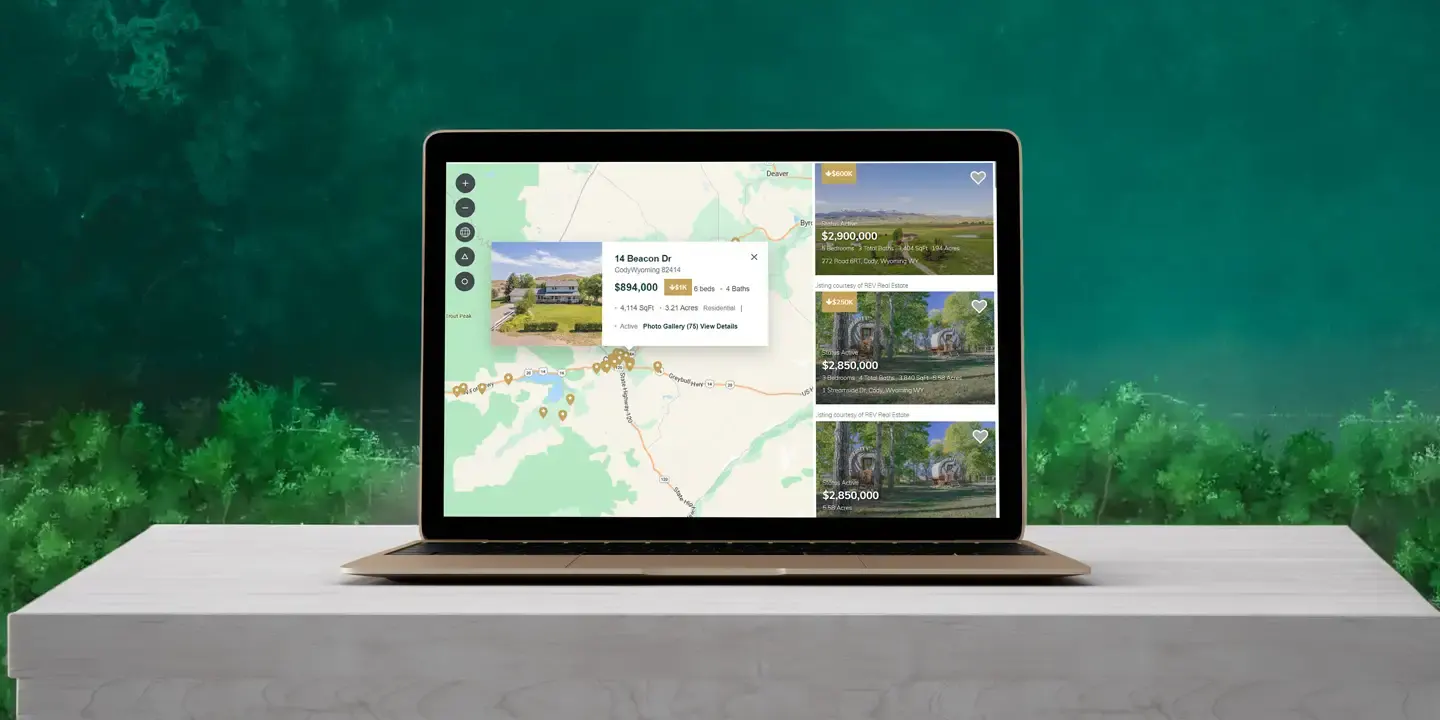
Finishing Our IDX Broker Customization: Solving the Property Popup
A behind-the-scenes look at what it really took to redesign the IDX Broker…
Importing Compositions from one AE file to another
To import compositions from one AE project into another you need to do the…

What Makes A Website Feel Expensive?
Some websites instantly feel polished, credible and expensive while others…
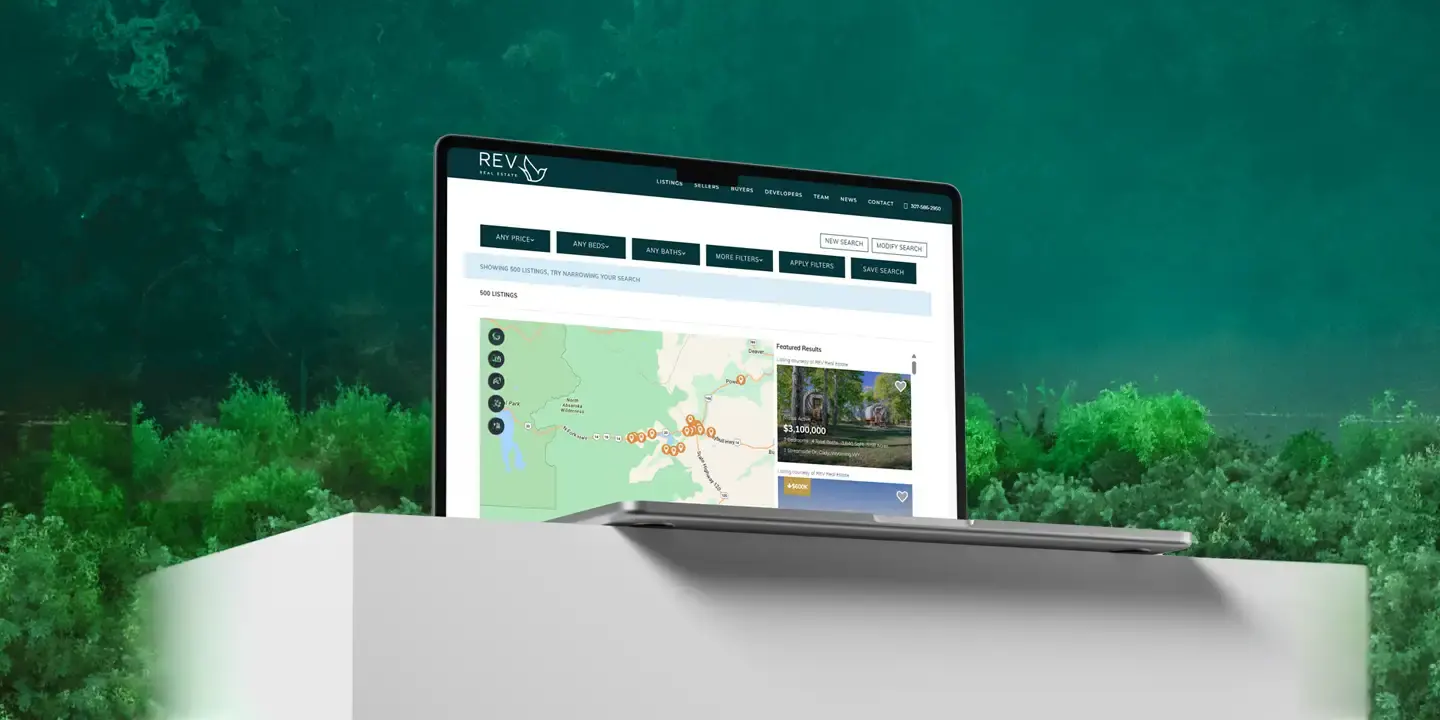
How We Gave an IDX Broker Listings Page a Fully Custom Look
A behind-the-scenes look at how we customized an IDX Broker listings page for…

How Small Design Details Make Brand Experiences More Memorable
Discover how AI is revolutionizing web design — from smart automation and…